 Flash
Flash 
Full manual
All sections in a row — handy for printing or searching the page.
What you learn
Flash Vocal — Multiplication trains eleven times tables, from ×2 to ×12: for each table, the eleven multiplications from 0 × n to 10 × n. An equation appears — “7 × 8 = ?” — and the child says the answer out loud. The app listens, validates and moves to the next one.
The goal is not to know how to compute, but to answer without computing: seven times eight, fifty-six — like a nursery rhyme. This automatism is what frees attention for bigger calculations, at school as at home.
- Ages 7 — tables ×2, ×5, ×10.
- Ages 8 — tables ×3, ×4, ×6, ×7.
- Ages 9 — all tables up to ×9.
- Ages 10 and remediation — tables ×11 and ×12, missing automatisms.
The app is available in sixteen languages: English, French, German, Spanish, Italian, Portuguese, Dutch, Polish, Czech, Turkish, Catalan, Ukrainian, Russian, Japanese, Vietnamese and Chinese. It follows the device language and expects the answer in that language.
First steps and profiles
On first launch, Flash Vocal — Multiplication asks you to create a child profile: their first name and, depending on the app, their level or progression. Sessions, stars and statistics are attached to this profile.
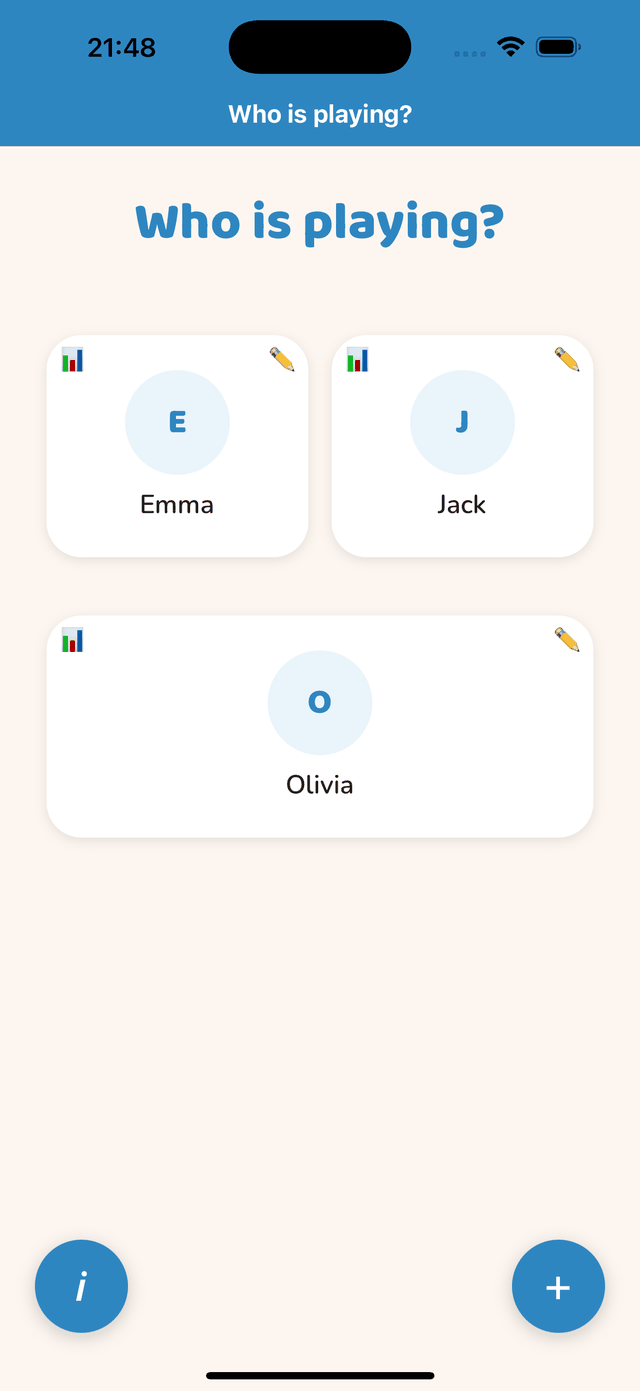
Several children
Each child has their own profile and their own path. One profile is included for free; additional profiles are part of the subscription (Family: 3 profiles, Education: 30 profiles). Switch child from the home screen by tapping the displayed first name.
Editing or deleting a profile
The child’s card (profile icon) lets you correct the first name, set the daily reminder and delete the profile with its whole history. Nothing leaves the device: there is no account, no sync, no online backup — switching device does not transfer profiles.
The path and the stars
The home screen shows the path the child follows. Each circle is a step; the path unfolds in teaching order, from the simplest to the most complete.
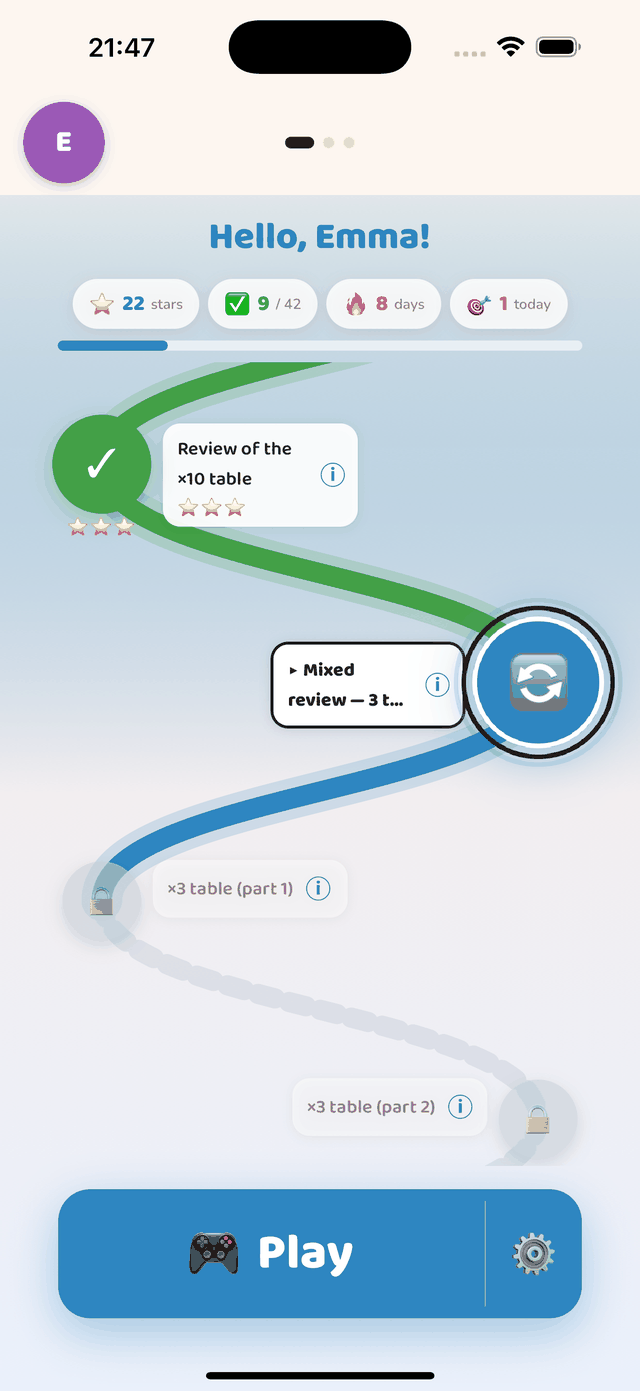
Three step states
- Green with a tick — completed step. The stars under the circle show the level reached.
- Blue and animated — the current step, the one the “Play” button launches. It is the first step not yet mastered.
- Grey with a padlock — not yet reachable: either the previous step is not validated, or the step is part of the subscription.
The stars
One to three stars based on speed and accuracy: the number of correct answers per minute is compared with three thresholds. They do not reward finishing but automatism — twenty answers without hesitation beat forty with stumbles. A step counts as mastered from the first star; replay it to earn more.
Choosing another step
Tap any step already open to select it, then “Play”. Nothing forces you to follow the path in order: you can redo an old step to consolidate. Consolidation steps mix everything seen before them; this shuffling is what installs the reflex.
The 42 steps
The path has 42 steps. The tables follow the teaching order — ×2, ×5 and ×10 first (the most regular), then ×3, ×4, ×6, ×7, ×8, ×9, and finally ×11 and ×12. Each table comes in two parts — the multiplications from 0 to 5, then from 6 to 10 — so that no more than six new facts are ever introduced at once, then is reviewed as a whole. From the third table onwards, a cumulative review mixes every table already seen; the last one shuffles all eleven.
- 1×2 table (part 1)0 × 2 … 5 × 2Free
- 2×2 table (part 2)6 × 2 … 10 × 2Free
- 3Review of the ×2 table0 × 2 … 10 × 2Free
- 4×5 table (part 1)0 × 5 … 5 × 5Free
- 5×5 table (part 2)6 × 5 … 10 × 5Free
- 6Review of the ×5 table0 × 5 … 10 × 5Free
- 7×10 table (part 1)0 × 10 … 5 × 10Free
- 8×10 table (part 2)6 × 10 … 10 × 10Free
- 9Review of the ×10 table0 × 10 … 10 × 10Free
- 10Cumulative review up to ×10Tables ×2, ×5, ×10 mixedFree
- 11×3 table (part 1)0 × 3 … 5 × 3Free
- 12×3 table (part 2)6 × 3 … 10 × 3
- 13Review of the ×3 table0 × 3 … 10 × 3
- 14Cumulative review up to ×3Tables ×2, ×5, ×10, ×3 mixed
- 15×4 table (part 1)0 × 4 … 5 × 4
- 16×4 table (part 2)6 × 4 … 10 × 4
- 17Review of the ×4 table0 × 4 … 10 × 4
- 18Cumulative review up to ×4Tables ×2, ×5, ×10, ×3, ×4 mixed
- 19×6 table (part 1)0 × 6 … 5 × 6
- 20×6 table (part 2)6 × 6 … 10 × 6
- 21Review of the ×6 table0 × 6 … 10 × 6
- 22Cumulative review up to ×6Tables ×2, ×5, ×10, ×3, ×4, ×6 mixed
- 23×7 table (part 1)0 × 7 … 5 × 7
- 24×7 table (part 2)6 × 7 … 10 × 7
- 25Review of the ×7 table0 × 7 … 10 × 7
- 26Cumulative review up to ×7Tables ×2, ×5, ×10, ×3, ×4, ×6, ×7 mixed
- 27×8 table (part 1)0 × 8 … 5 × 8
- 28×8 table (part 2)6 × 8 … 10 × 8
- 29Review of the ×8 table0 × 8 … 10 × 8
- 30Cumulative review up to ×8Tables ×2, ×5, ×10, ×3, ×4, ×6, ×7, ×8 mixed
- 31×9 table (part 1)0 × 9 … 5 × 9
- 32×9 table (part 2)6 × 9 … 10 × 9
- 33Review of the ×9 table0 × 9 … 10 × 9
- 34Cumulative review up to ×9Tables ×2, ×5, ×10, ×3, ×4, ×6, ×7, ×8, ×9 mixed
- 35×11 table (part 1)0 × 11 … 5 × 11
- 36×11 table (part 2)6 × 11 … 10 × 11
- 37Review of the ×11 table0 × 11 … 10 × 11
- 38Cumulative review up to ×11Tables ×2, ×5, ×10, ×3, ×4, ×6, ×7, ×8, ×9, ×11 mixed
- 39×12 table (part 1)0 × 12 … 5 × 12
- 40×12 table (part 2)6 × 12 … 10 × 12
- 41Review of the ×12 table0 × 12 … 10 × 12
- 42Cumulative review up to ×12Tables ×2, ×5, ×10, ×3, ×4, ×6, ×7, ×8, ×9, ×11, ×12 mixed
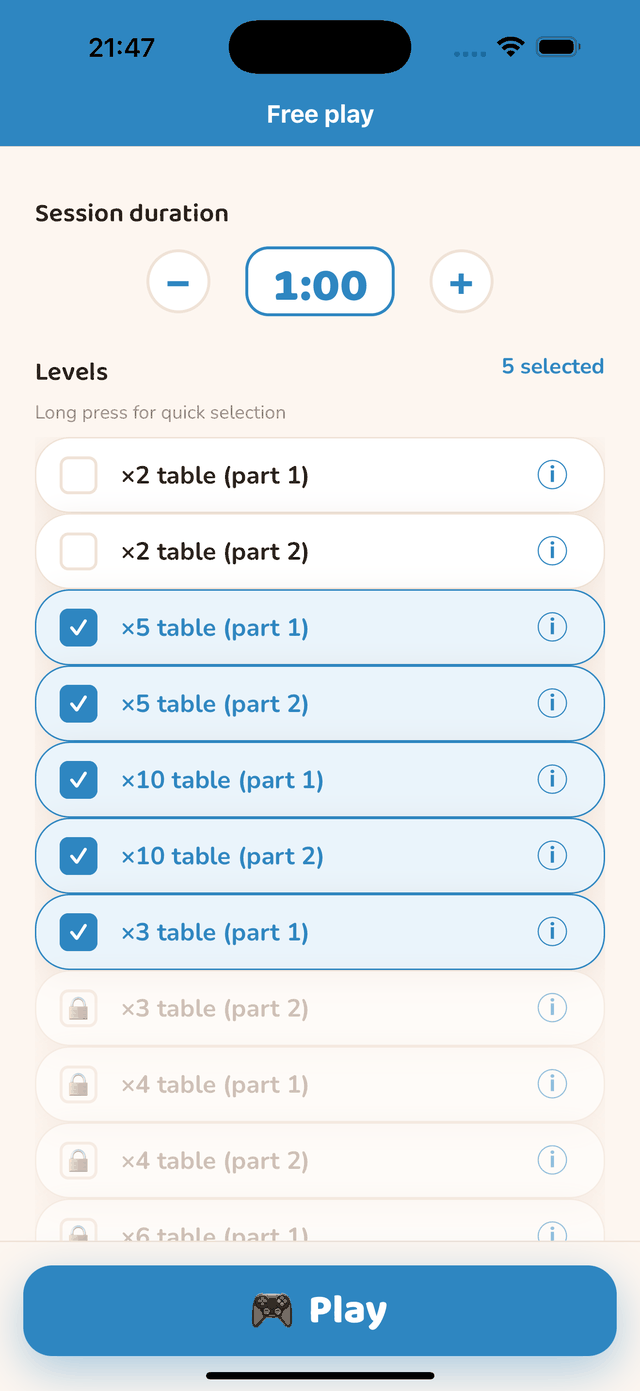
Within a session, the multiplications of a step are drawn at random, without repetition until all have been seen. You can also combine several steps in one session from the selection screen: the app then mixes their content.
Stars are earned on the number of correct answers per minute: 1 star from 12, 2 from 18, 3 from 26 — slightly lower thresholds than for additions, as the answers take longer to say.
Steps marked “Free” are available without a subscription, with no time or session limit.
How to say a number
Say only the answer: for “7 × 8 = ?”, say “fifty-six”. There is no need to repeat the equation — “seven times eight fifty-six” works too, but lengthens the measured answer time.
- Answers range from 0 to 120. The app recognises the usual forms (“zero”, “twelve”, “seventy-two”, “one hundred and twenty”…).
- A clear voice at normal volume is enough: no need to shout or over-articulate.
- Wait for the card to be displayed before answering; an answer said during the transition is not taken into account.
- If the answer is refused, the recognised text appears in red under the card: it is often a confusion between two close numbers (“fifteen” / “fifty”) or background noise.
The recognition language
The app expects the answer in the device language, among the sixteen languages of the app. The French voice model ships with the app; for the other languages, a model is downloaded automatically on first launch — then everything works offline.
The voice session
A card appears. The child says the answer out loud. The app listens, validates, and the next card appears immediately. There is nothing to touch: the session runs entirely by voice, hands free.
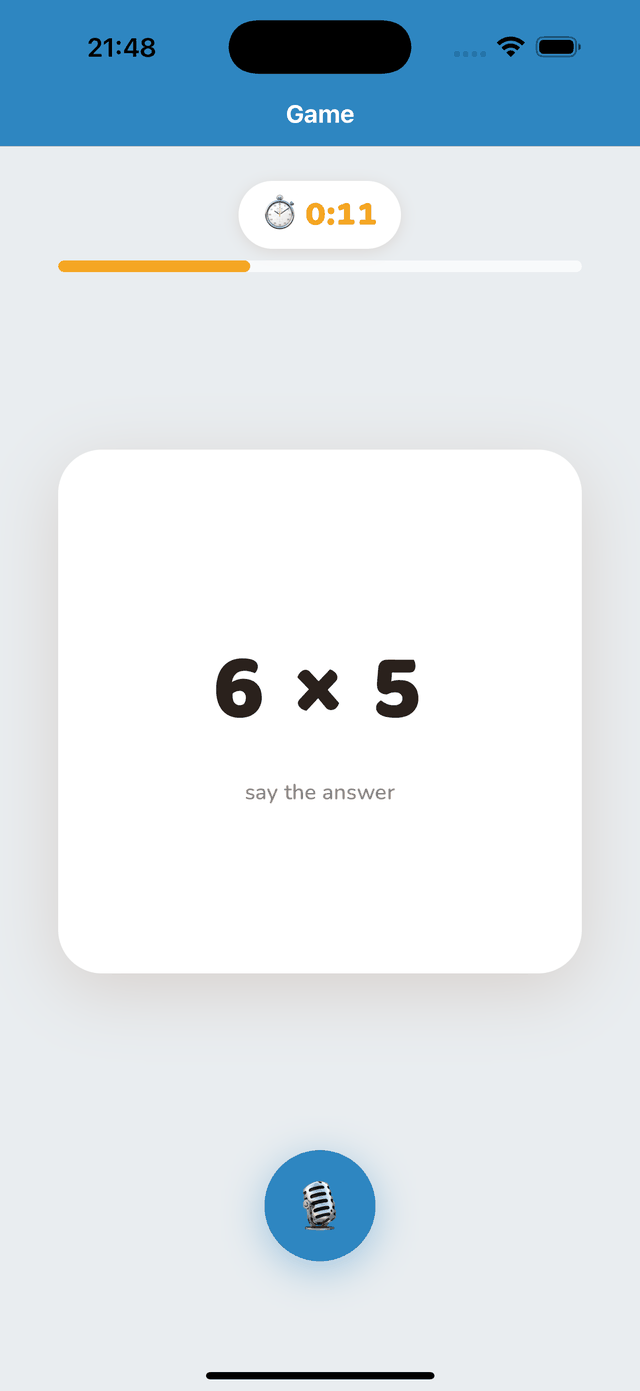
At the top, the timer and the number of answers already validated. At the bottom, the microphone shows that listening is active. A session lasts one minute by default: beyond that, a young child’s attention drops.
What the app heard
Under the card, the app briefly shows the recognised text: the validated answer after a correct one, or in red what it heard when the answer is refused. The display fades by itself after a second — an adult sitting next to the child immediately sees which confusion occurred.
Skipping a card
A tap anywhere on the screen moves to the next card. There is no button to aim for: the whole screen acts as a “skip” key, so an adult can unblock the child without interrupting the session. The skipped item counts as not succeeded and appears among the “skipped” of the result.
Pausing
The pause button, at the top of the screen, suspends the timer and the listening. Tap to resume; you can also leave the session from the pause — the answers already validated are kept.
If the voice is poorly recognised
- Check that the microphone is allowed for the app (Settings › the app › Microphone).
- Bring the device closer, reduce background noise, and have the answer said clearly, without shouting.
- Wait for the card to be displayed before speaking: an answer said too early is not taken into account.
No speech is transmitted. Speech recognition runs entirely on the device, offline, and nothing is recorded.
The result of a session
At the end of a session, the screen shows the number of correct answers, the speed in answers per minute, and a performance illustration that evolves with the level reached.
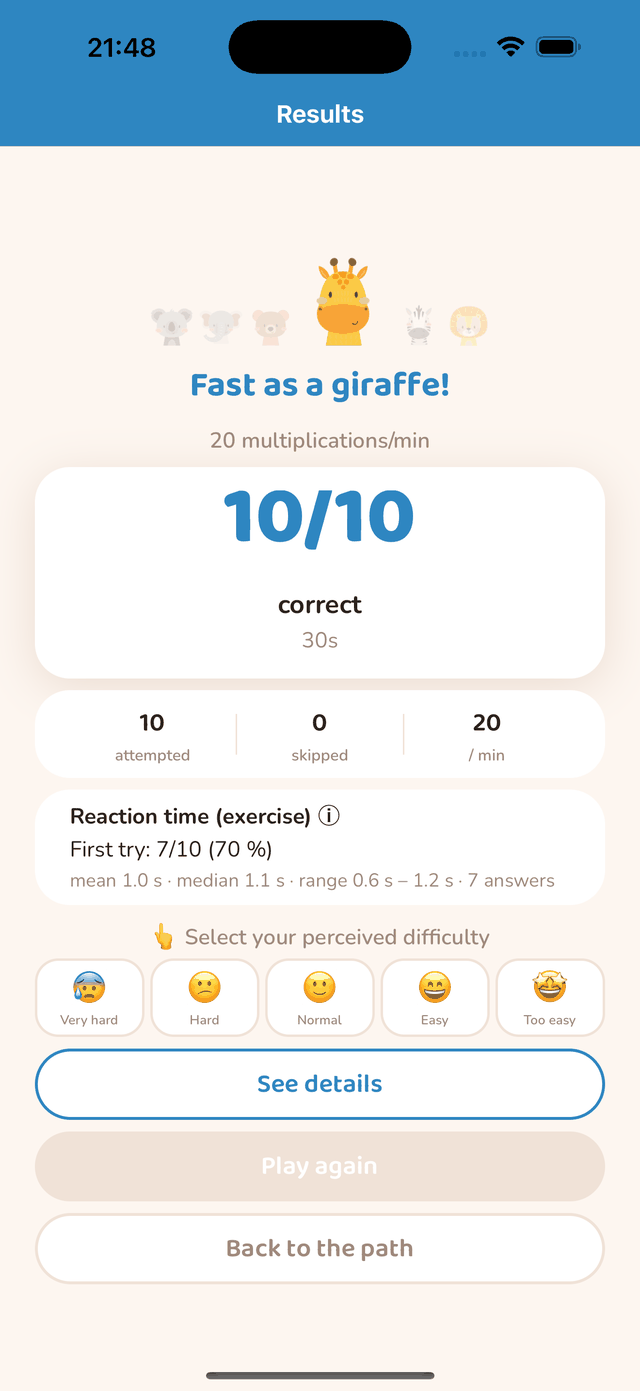
“How did you find it?”
The child says whether they found the exercise very hard, hard, normal, easy or too easy. The answer is required to continue. Crossed with the measured performance, this feeling produces the advice shown just below — consolidate, or move to the next step. A fast child who reports difficulty is not in the same situation as a fast child at ease.
The detail
“See details” lists each item of the session, from the least to the best succeeded, with the average time and the number of attempts. Expanding a line shows the voice timeline: the reaction time — between the card appearing and speech starting — then the pronunciation time, and any errors (red bars).
This distinction matters: a child who takes time to start but answers fast has not automated yet. A child who starts fast but pronounces slowly has a different issue.
Statistics and the voice timeline
Reachable from the home screen by swiping left, or from the child’s card. Four periods: 1 month, 3 months, 6 months, 1 year.
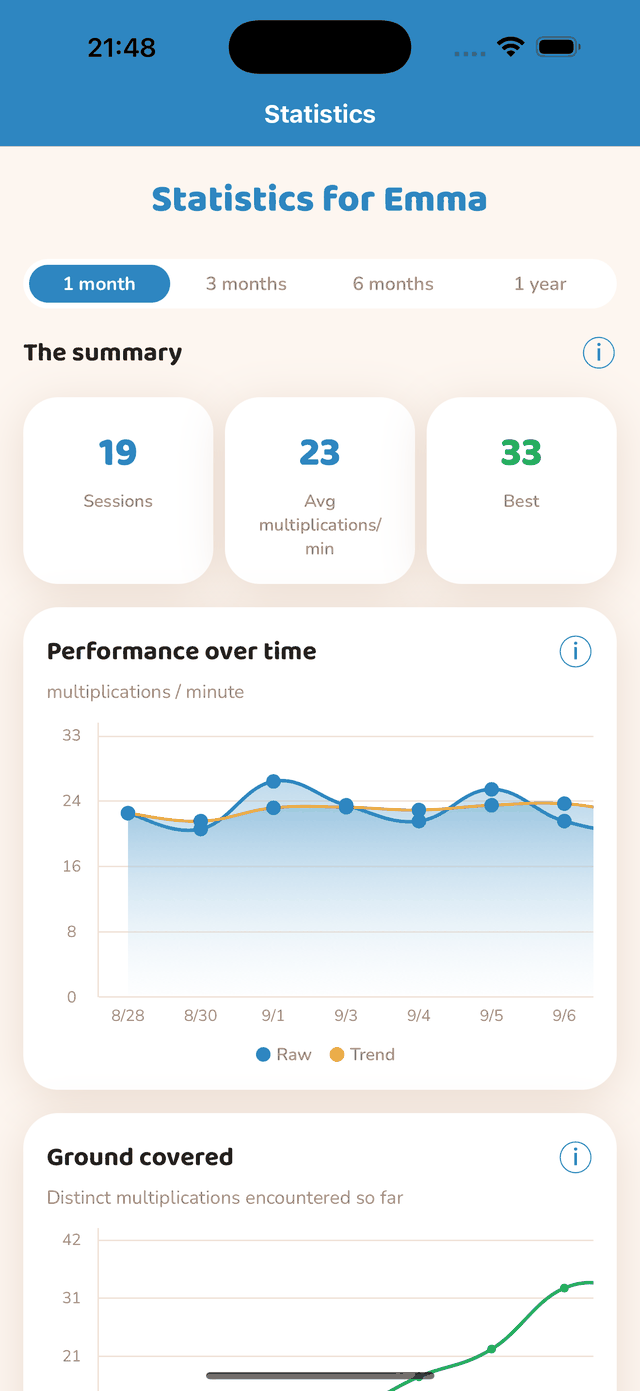
Performance over time
The blue curve gives the measured speed, the orange one the smoothed trend. Read the trend: a single session is noisy because of tiredness or a harder step. Each point is a day — the average of that day’s sessions — and a week on long periods.
Voice metrics
- Reaction — average delay between the card appearing and speech starting. It is the most reliable sign of an automatism settling in: it shortens week after week.
- Pronunciation — average duration of the answer itself.
- Errors — average number of failed attempts per item before the correct answer.
Tapping a bar of the timeline
In a session’s detail, the timeline bars shrink when an answer includes errors and no longer have room to show their times. Tap any bar to open the detail of that attempt: reaction, pronunciation, detection delay — and, for an error (red bar), what the speech recognition heard instead of the expected answer. It is the most direct tool to spot a recurring confusion.
Feeling and recent sessions
The evolution of the feelings given at the end of sessions, to be read against the performance curve. Below, the list of recent sessions: tap a line to reopen its full detail, timelines included.
The daily reminder
From a child’s card, you can enable a reminder and choose its time. It only fires on days without a session: a child who has already practised is not disturbed. A reminder that goes off every evening, even after a session, ends up being switched off.
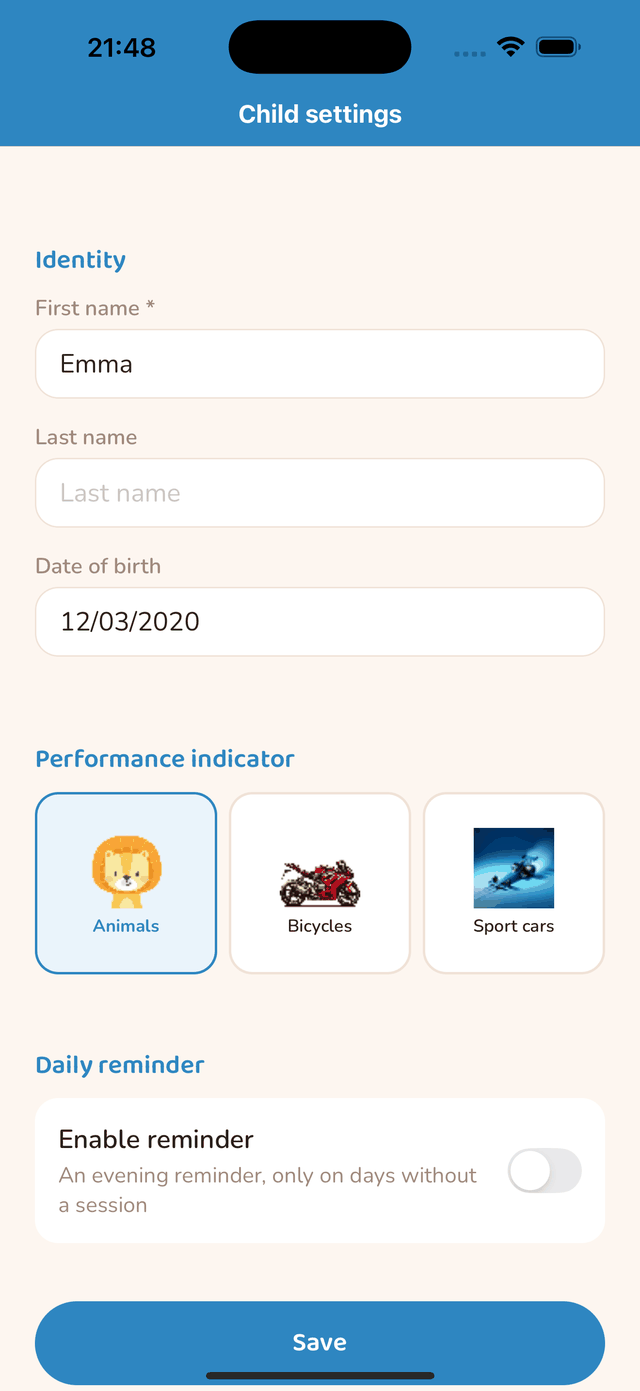
Notifications must be allowed for the reminder to work: on first activation, the device asks for permission — accept it. If it was refused, go to Settings › Notifications › Flash Vocal — Multiplication to allow it, then come back and enable the reminder.
The reminder is a local notification scheduled by the app on the device: no server is involved.
Free or subscription
What is free
One child profile and the first 11 steps: the whole ×2, ×5 and ×10 tables (parts and reviews), their cumulative review, and the first part of the ×3 table — with no time or session limit. Enough to cover the second-grade programme and judge the app over several weeks.
What the subscription opens
- The rest of the path: tables ×3 to ×9, ×11 and ×12, and all reviews.
- Several child profiles, each with its own tracking (3 with Family, 30 with Education).
Plans, durations, management and restoring are described in the next section. Prices are shown in the app according to your store.
Subscription and restoring
The plans
- Family — up to 3 child profiles.
- Education — up to 30 profiles, for a class or a practice.
Each comes in 1 month, 3 months, 6 months and 1 year. Prices are shown in the app, in your store’s currency (App Store or Google Play). The subscription opens the whole path and the additional profiles; what is already free stays free without a subscription.
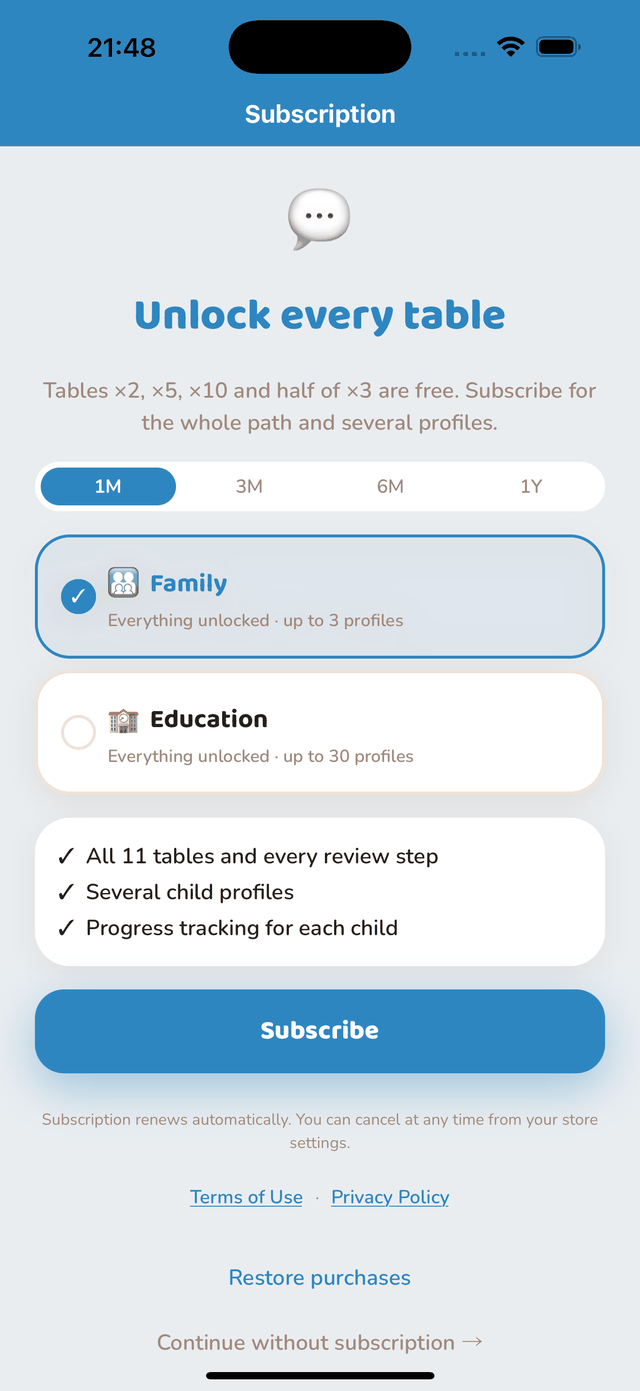
Managing or cancelling
The subscription is managed from Settings → your name → Subscriptions on your iPhone or iPad. Cancellation takes effect at the end of the current period; no pro-rata refund is made by the publisher, billing being handled by Apple.
The subscription is managed from the Play Store → menu → Payments & subscriptions → Subscriptions. Cancellation takes effect at the end of the current period; billing is handled by Google.
Restoring purchases
If you already subscribed and switch device, or reinstall the app, “Restore purchases” on the subscription screen reinstates your rights — with the same Apple or Google account as the purchase. Profiles are not restored: they only exist on the original device.
On iOS, the terms of use are Apple’s standard licence agreement; on Android, those of Google Play.
Help and contact
The app’s “Help & Info” screen gathers: this manual, the support contact, rating on the store, sharing the app, managing purchases, the privacy policy, the terms of use and data reset.
For any question, recognition problem or suggestion, write to support@akisto-software.com stating the app, the device and its version: we answer every message.
A support page on this website lists frequently asked questions.
Privacy
No speech is transmitted. Speech recognition runs entirely on the device, and no audio recording is kept, even temporarily.
The app works 100% offline. Profiles, progress and history stay on the device. There is no advertising, no account, no tracking. Subscriptions are handled by Apple or Google: the publisher sees no payment data.
The only exception: in case of a crash, an anonymous technical report (device model, OS and app version, error trace) is sent through the Sentry tool so we can fix the defect. It contains no profile, no voice and no personal identifier.
To erase everything, the “Help & Info” screen offers “Reset all data”. The full privacy policy is on this website.